 Fotilo
Long screenshots
How to take a scrolling screenshot on Mac
The screenshot tool built into macOS (⇧⌘5) captures one screen at a time. To save a whole web page, a long chat or a document as one image, use an app that stitches as you scroll. In Fotilo, frame the area and scroll; it joins the pieces as you go, without repeating the header that stays fixed at the top.
macOS 14 or later, Apple silicon and Intel · Free forever, no account
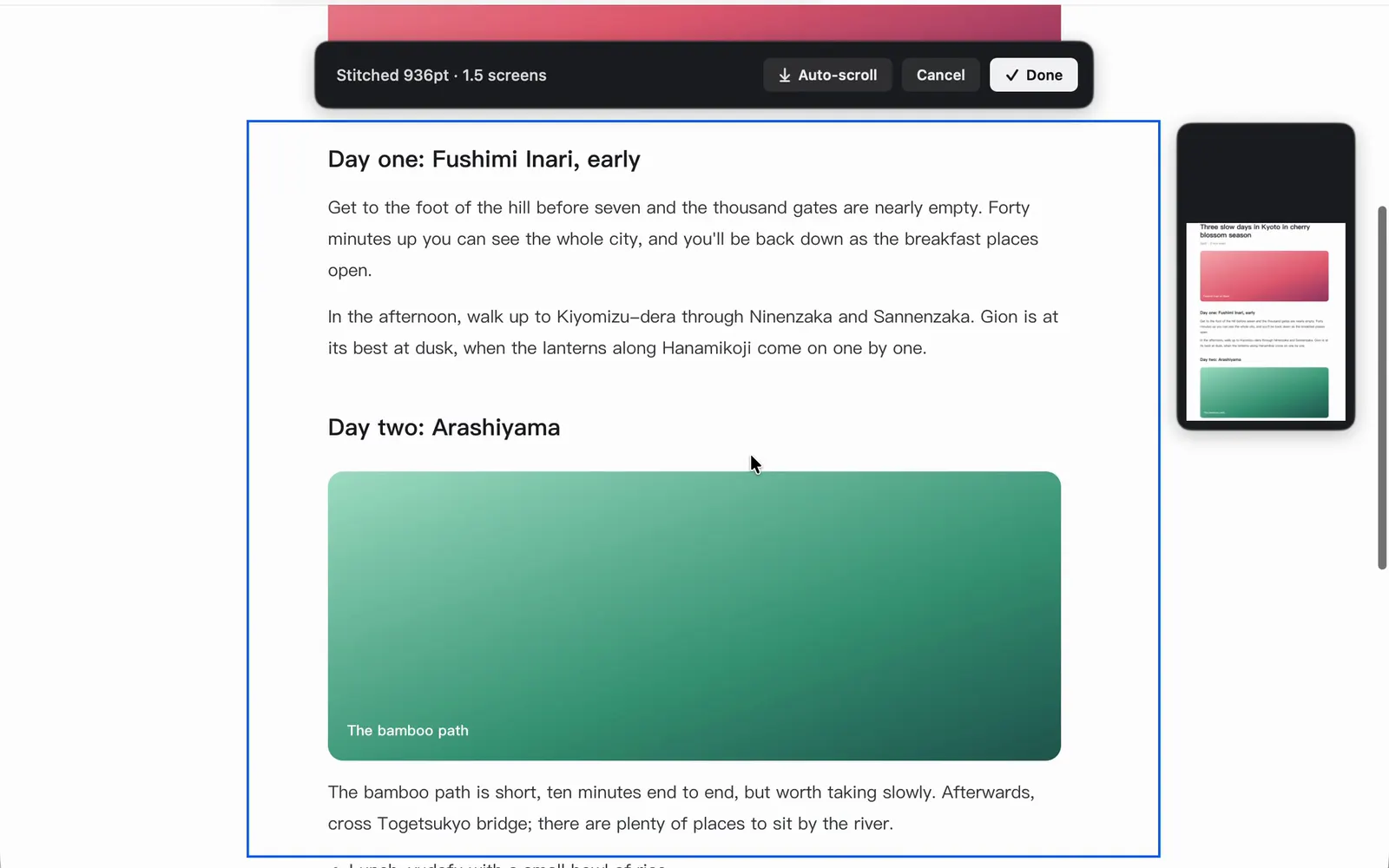
Step by step
- Download Fotilo and open it. The first launch walks you through the permissions it needs.
- Choose Long Screenshot from the menu bar icon, or press its shortcut, and frame the part that scrolls: a chat, an article, a table.
- Scroll at your normal pace. Fotilo stitches as you go.
- Scrolled too far? Scroll back up and the image ends where you stop. You can capture upward too.
- Click Done, then mark it up, blur private details or copy it.
Rather not scroll by hand? Fotilo can do the scrolling for you.
Why the result looks clean
- Fixed headers appear once. Navigation bars that stay at the top while you scroll aren't repeated down the image.
- Scroll direction is detected for you, so the pieces land in the right order.
- A viewfinder for very long images shows one part at a time, so it stays readable.
- Edit it like any screenshot. Arrows, text, mosaic and crop work the same, and your markup stays editable when you reopen it.
Exactly what you saw
A scrolling screenshot keeps the page exactly as it looked on your screen, in web pages, chat apps and documents alike, as one image you can paste anywhere.
More you can do with the image
- Copy the text in it with ⇧⌘O. See it
- Have it find emails, phone numbers, card numbers and keys and blur them before you post.
- Drag it into Finder or a chat as PNG, JPG or PDF.
Questions
Is it free?
Yes. Long screenshots while you scroll are free, with no watermark and no account. Having Fotilo scroll for you is part of Screenshot Pro (and Screenshot & Recording Pro). See pricing.
Does it work in Safari, Chrome and chat apps?
Yes. It works with what's on your screen, in browsers and in other apps.
Does Fotilo upload my screenshots or recordings?
No. Capture, text recognition, captions and editing all happen on your Mac.
Which Macs does it run on?
macOS 14 or later, on Apple silicon and Intel.
macOS 14 or later, Apple silicon and Intel · Free forever, no account